



Welcome!
Have you ever finished a pattern only to have one motif translucent instead of opaque? One motif caught me by surprise. Here’s the story.
Usually, every Wednesday on this blog I post a strategy, process, or reflection for illustration with the iPad app ProCreate. But I was waylaid with an illness and am only now getting back on my feet. But I’ve something to share that might be helpful to you. This Wednesday Wrap Up is about translucent motifs: sometimes we use a translucent brush or perhaps smudge a bit too much. The motif becomes slightly see-through when we need it to be opaque. What do we do?
The Story and Solution
Earlier this week, I wrote about the ice cream prompt. It’s a Jennifer Nichols [ @leila_and_po ] prompt— I chose to create four different ice cream illustrations and place them in a half-drop pattern, which is what makes them look diagonal is this type of illustration. I changed the textured background with eight different colors.
Everything looks great on white and in the light colors, see above. But zoom in on this display image with dark blue and dark purple. Zoom in on the darkest backgrounds to see the translucency of the ice cream sundae cone:
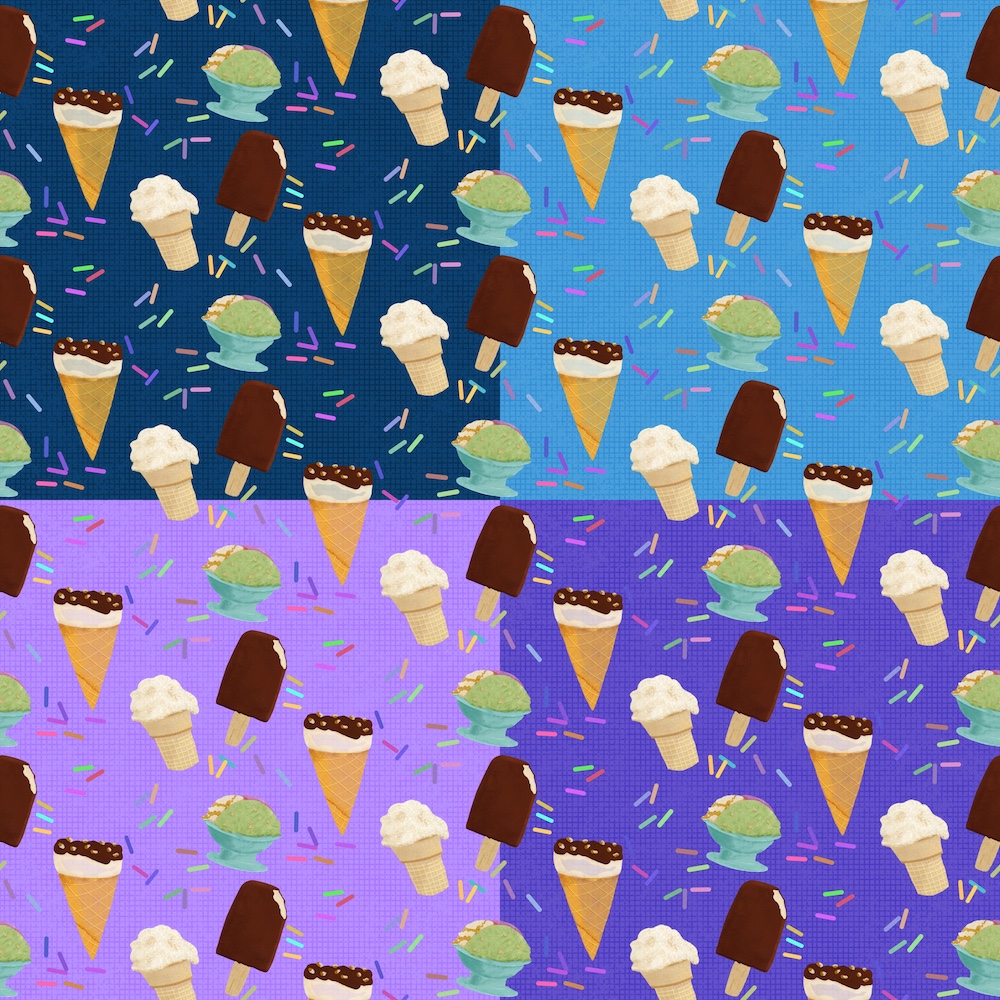
I needed my translucent ice cream sundae cone to be opaque.


How to Fix Translucency
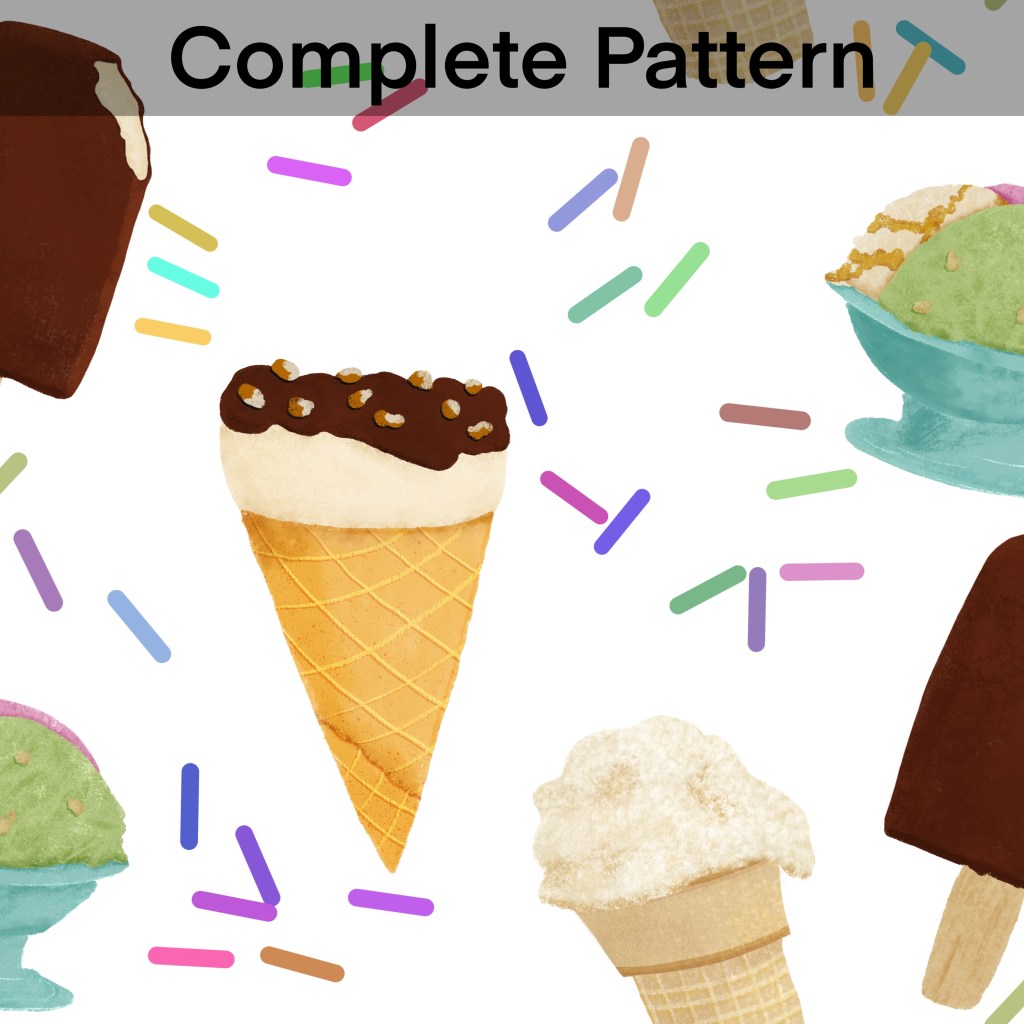
I went back to the group of layers for this ice cream motif. I duplicated the motif, alpha locked the lower motif, and filled it with white. I duplicated it several times until it showed opaque and merged the white layers together, checking again for opaqueness. I then merged it with the original motif, now solid and opaque as in the right image.
I could have merged the two layers– the original and the duplicated layers, but I consider the process of of creating a ‘white’ background better clears the issue and more accurately makes the transition from translucent to opaque, keeping the details and textures in tact.
The Lesson: Check Your Patterns
So, although I checked the motif with the white background on– it looked perfect. I did also check the first pattern I made– the light pink. It looked good, but if you zoom in on that one, you’ll also see the transparency. My old eyes did not notice them, until I’d made the last change in background– the navy one. Then I had to redo ALL eight!
Fortunately, once I’d changed the opaqueness of the motif, it was the only addition to the base pattern and so was fairly easy to correct. Had it been in the original set of motif’s, I would have had to redo the entire pattern. As it is I simply had to remake the drop pattern into a full drop pattern and resave all my backgrounds.

Other Solutions?
I look forward to your sharing your experiences with solving issues of Procreate Art and hope this solution helps you with translucent/opaqueness issues. If you have an alternate solution, please share.
Please continue to be a part of the #warmup4art series to learn and enjoy our work together! See my sharing at IG @42Sheri and Twitter @42Sheri.


 I wonder, if I draw a line...