
Wednesday WrapUp on Challenge
I joined the Delores Naskrent Artistic Evolution Challenge. It’s for a week. I may be able to keep up. This is Day 3.
Today we found textured surfaces and snapped photos of them to import into our digital software, in my case, Procreate. I created grey scale versions of the photos to use as textures over the whole canvas or the motifs in the canvas illustration.
My Process
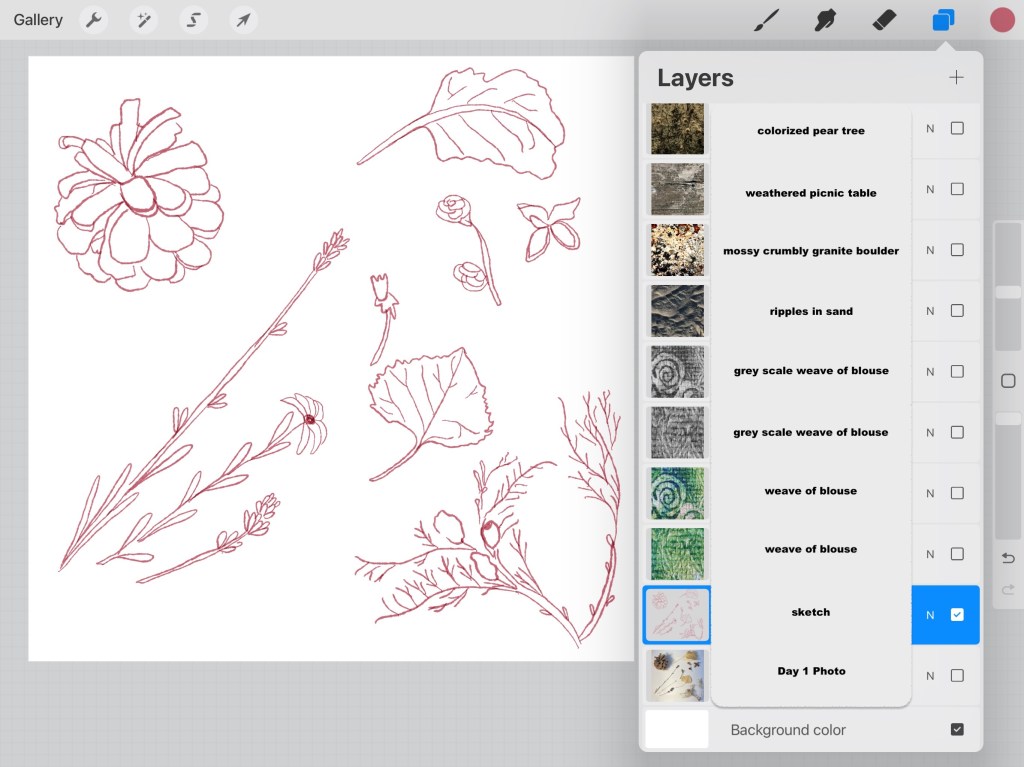
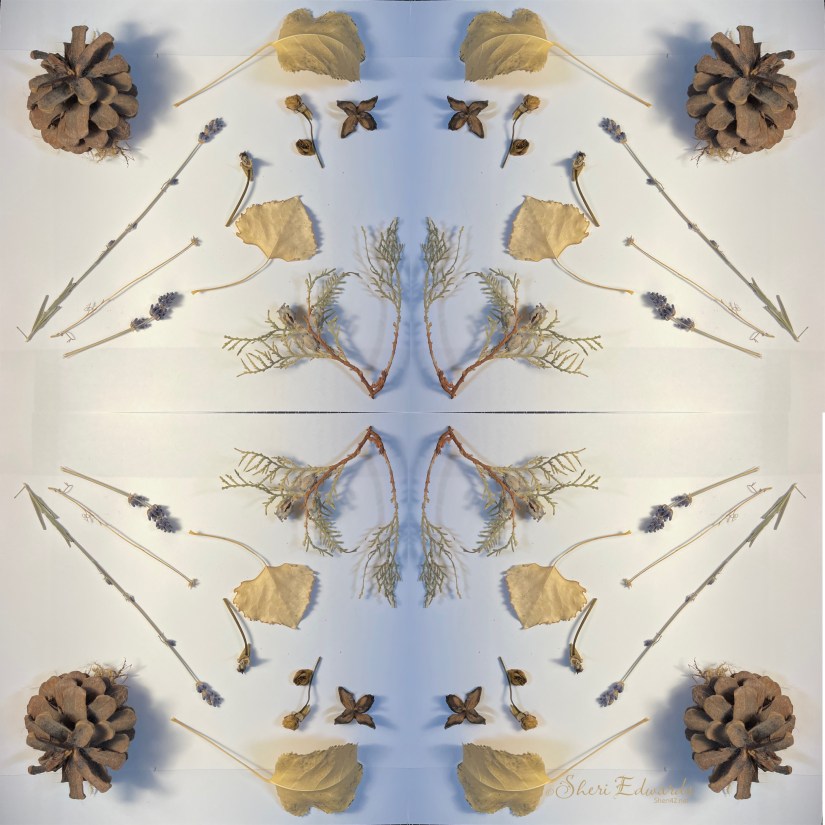
I decided to try to make a sketch and illustration from my Day 1 nature gathering. Take a look at my different texture photos and sketch for Day 1’s nature items, or view the mp4 of these layers.
The Day One Nature Arrangement:
The illustration I created from the Day 1 items and sketch I drew.

I painted with Jennifer Nichols gouache brushes, each set of different motifs on their own layer. I also created a shadow layer by duplicating the illustration, filling it black, and then blurring it a bit. I then manipulated the shadow with the warp tool and offset it below the motifs in the layer above.
I also decided to add the newly created texture photos to motifs. For the pinecone, I clipped the mossy granite boulder and set it to subtract, which created little blotches and some blues that matched the blues in the cedar and little flower. For the aspen leaves, I clipped the grey scale blouse weave set to color burn. I lowered the opacity on both.
A Background Texture
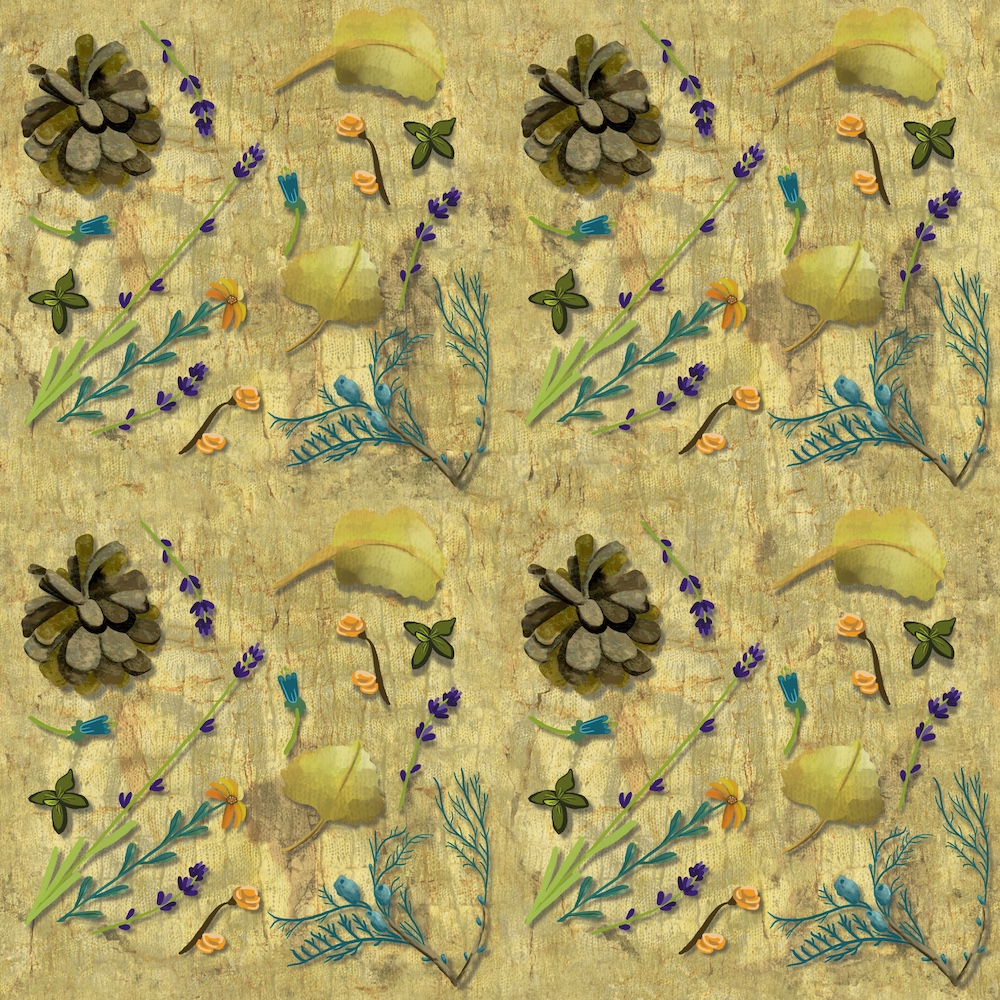
Rather than a white background, I decided to create a texturized background with my texture photos. So I filled a layer with a light yellow fill. Above that I inserted the rock wall with shadows, set to hard light at 52% opacity. Above that layer I inserted the grey scale blouse weave with swirls set to multiply at 34% opacity.

Background Pattern
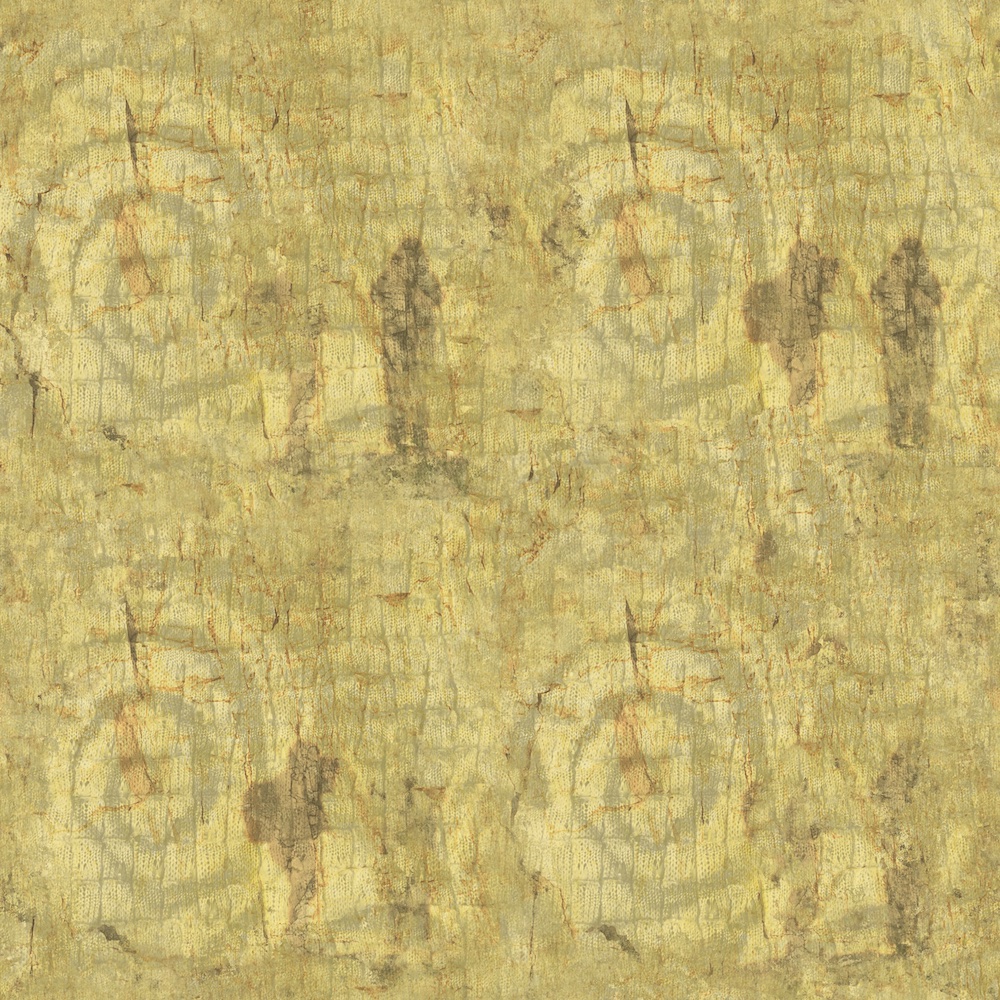
Since I wanted to create a pattern, I needed to turn the yellow background into a repeat pattern. To do that, I duplicated and arranged the layers, two by two and merged them. With the clone tool, I cloned the rippled area next to the swirl to the solid lined areas crossing in the middle horizontally and vertically. I also applied the clone tool to some of the shadows.
Just like in making patterns with motifs, sometimes you need to duplicate this cloned layer four times [then hiding the original] and push each of those into the corners so the clone tool can get to the edged crossing and make the repeat complete. Jennifer Nichols includes a how-to push to the edge in her Swirly Repeat Pattern YouTube video, explaining why you can’t mess with the edge. That’s why I needed to push the design into the corners one more time to get to the part of the illustration at the edge that I couldn’t clone.
Delores Naskrent has a class on Skillshare for doing this in Procreate: Clone Tool for Seamless Patterns and Adobe Illustrator and Photoshop: Repeat Textural Patterns.
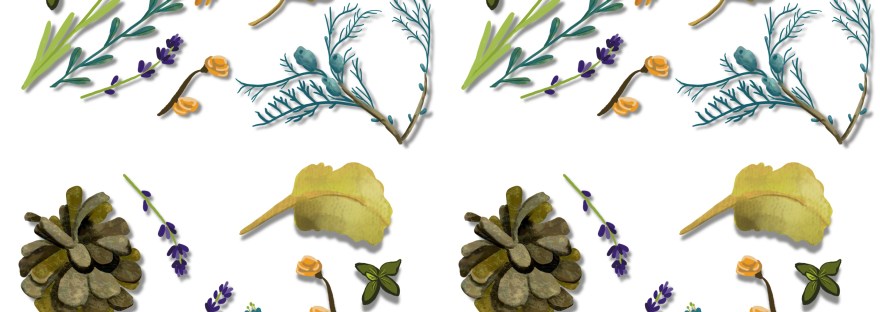
So now I could place the illustration and shadows in layers above this repeat background:
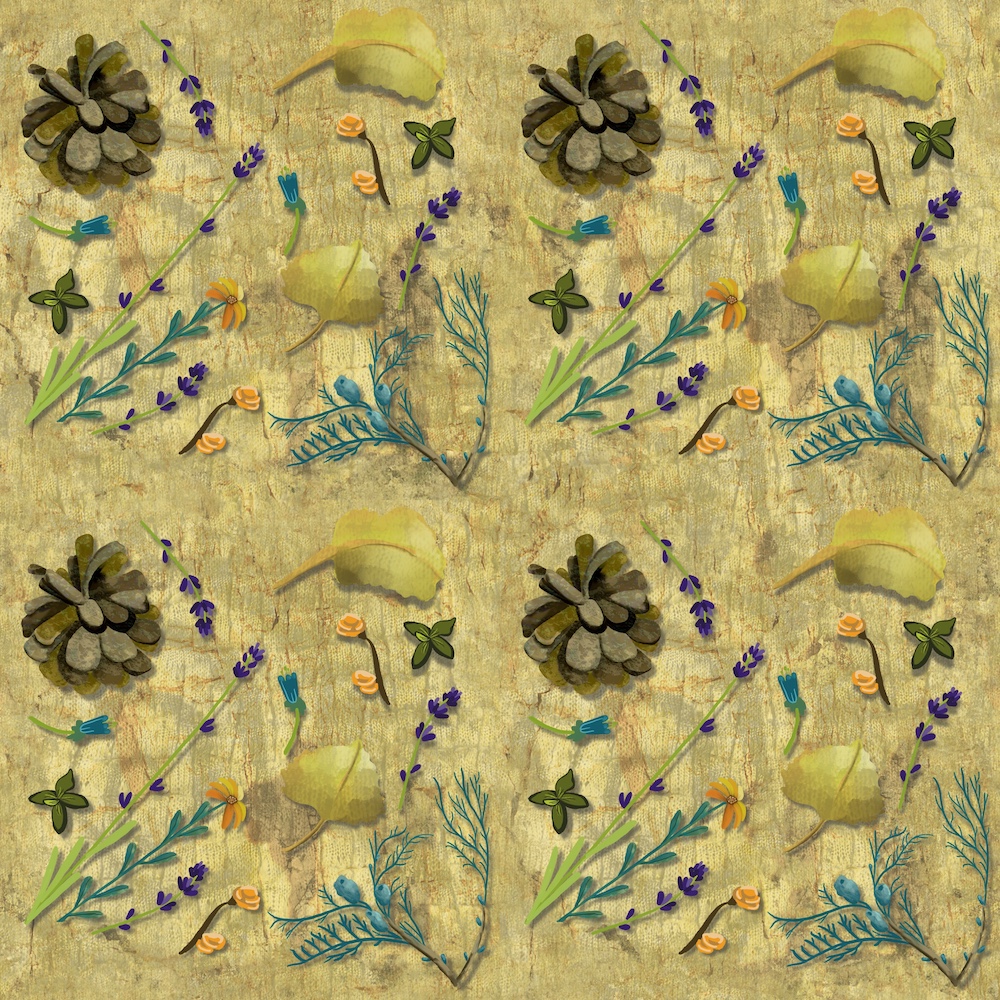
I didn’t really like that pattern, so I imported a previously made autumn leave illustration over the created background. Here you see the pattern on the left, and the repeat 2×2 pattern on the right:


Background Texture as Overlay
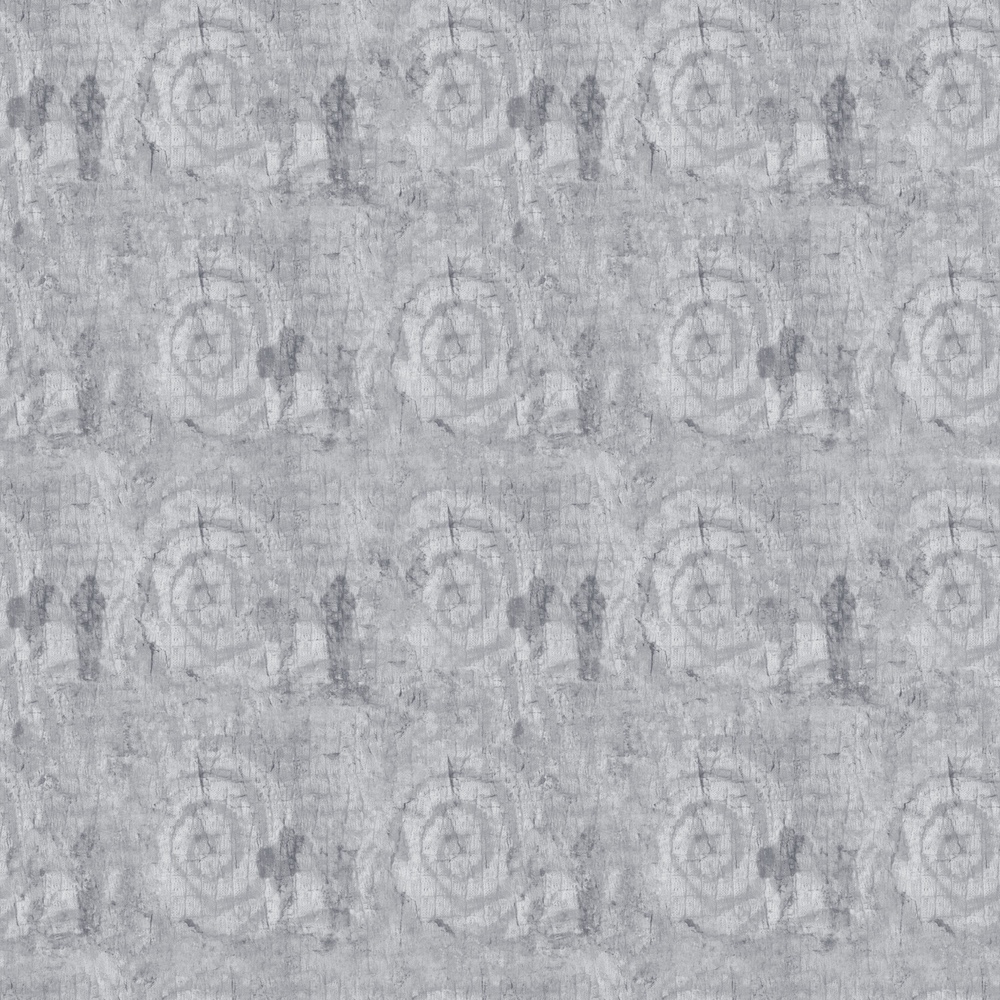
What if I wanted to use that background as texture over an image? First, I duplicated the repeat pattern so the 2×2 pattern was now a 4×4 pattern.
I turned it grey scale by placing a black layer on “color” mode above and did a copy all to paste a grey scale on its own layer.
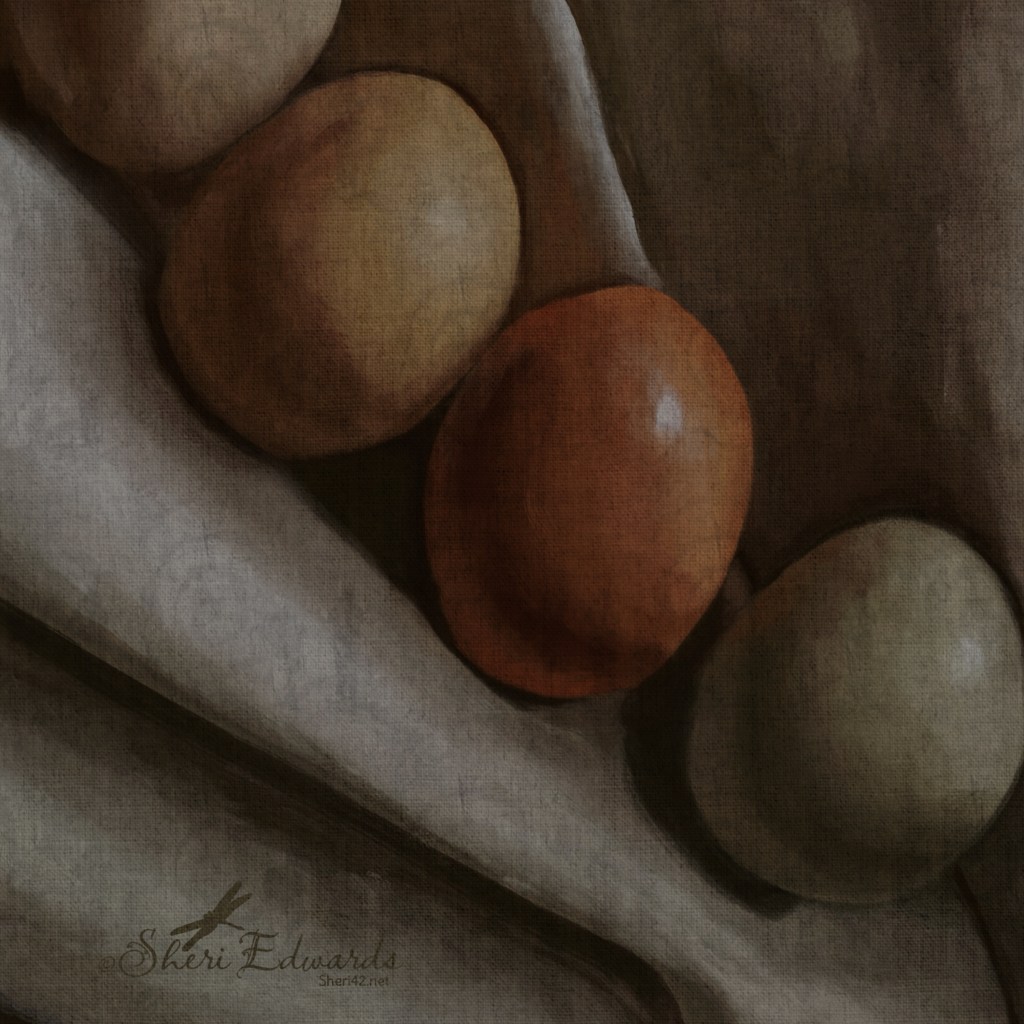
I imported an illustration of four eggs lying on a cloth below the new grey scale background. I duplicated the grey scale and set one on multiply at 33% opacity and the layer below set to color burn at 29% opacity. Opacity is adjust for the effect you want. Now you can see a subtle imprint of texture on the eggs and cloth.
And a texture brush
I also created a texture brush with the grey scale 2×2 texture file.
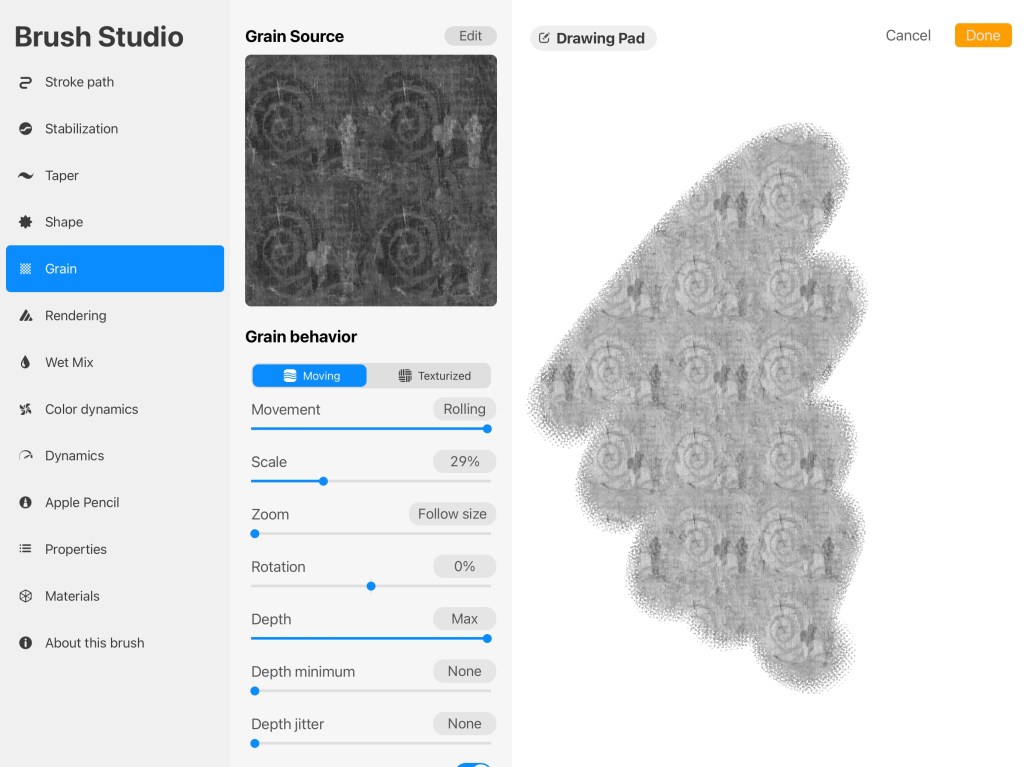
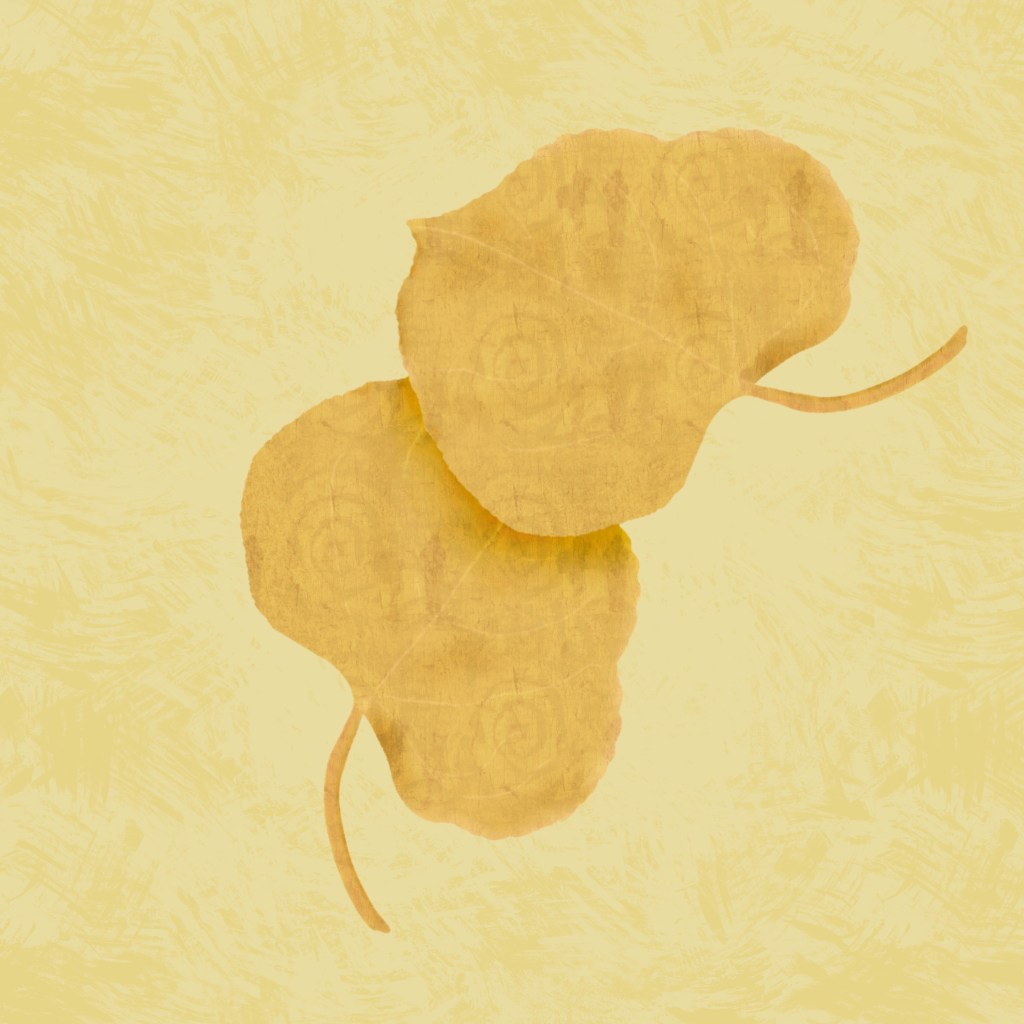
Now I can clip a layer over a motif and add this as texture. I clipped a layer over these aspen leaves and painted the texture brush on the clipped layer, setting the blend mode to color burn.
Reflection
I played with textures and developed a texture pattern and brush. It was a joy to experiment and try something new. Luckily, I have some knowledge about how to make a pattern and how to make a brush, which I learned in my various art communities. I forgot how much dimension can be enhanced through the use of various textures.
I enjoyed playing again with textures, especially since I remembered so much about how to create them. I know when I use Affinity Designer that textures are a big part of creating a less static effect with vector designs. And, I have more to learn, for sure.
Click here for a replay of my playing with textures in Procreate.
Play. Experiment. Learn. #artisticevolutionchallenge #warmup4art
Try It
Isn’t that exciting and fun? Try some experimenting on your own. What textures did you find? How did you adapt them? Be sure to check out Delores Naskrent’s website and IG on the challenge.
Also check out my Artist Resources page for links to artists I follow and learn from.
And you’re welcome to follow this blog for more art inspiration. We can share with #warmup4art to enjoy our work together! I look forward to your sharing and find me at @42Sheri, on Mastodon Sheri42, on Flickr teach.eagle Sheri 42. See my Home Page for links to all my shops so you can create your own shops to share your marvelous art. Thanks for stopping by.

 I wonder, if I draw a line...