
Welcome!
On most Wednesdays, check this blog for a strategy, process, or reflection for illustration with the iPad app ProCreate or Affinity Designer. This week I continued with learning Affinity Designer with a little help from Procreate. The focus was on creating assets to reuse.
First Reuse — Bunnies
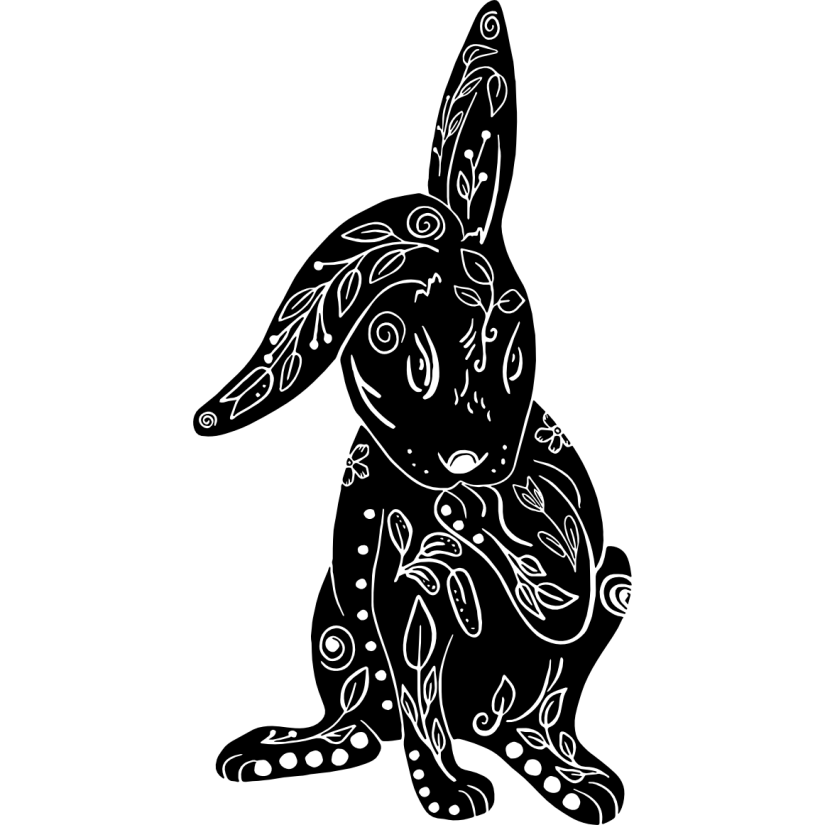
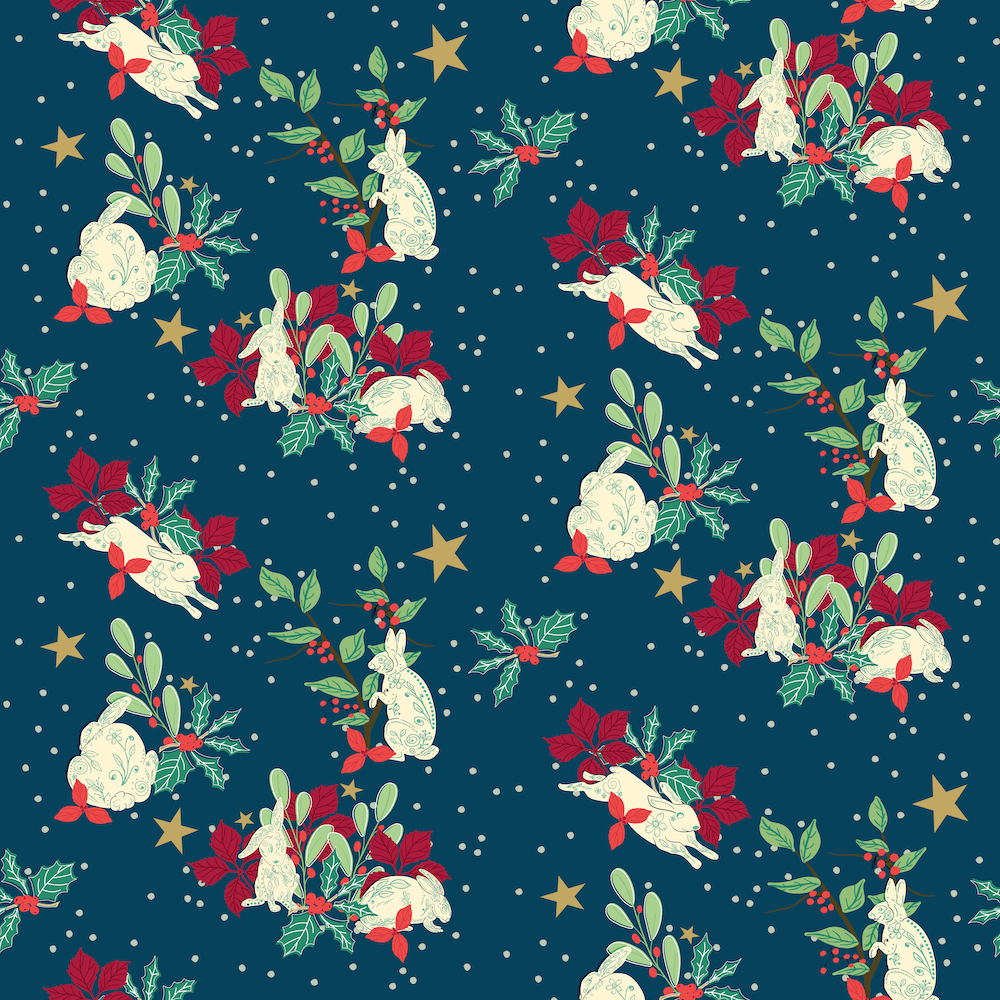
Remember #the100dayproject? I drew for 100 days in a row– 20 bunnies, 20 bears, 20 birds, 20 dogs, and 20 cats. You can get to all of them here: Cats for Twenty. And, again, another challenge, the Festive Animals Design Challenge by Spoonflower, I refined and vectorized five of the folk art rabbits made during that project. I made sure the lines were wide and clear enough, changing a few of the floral and leaf designs within a few of the rabbits.
I followed this process, Vectorize with Adobe Capture, with each folk art rabbit to move from Procreate to Affinity Designer.
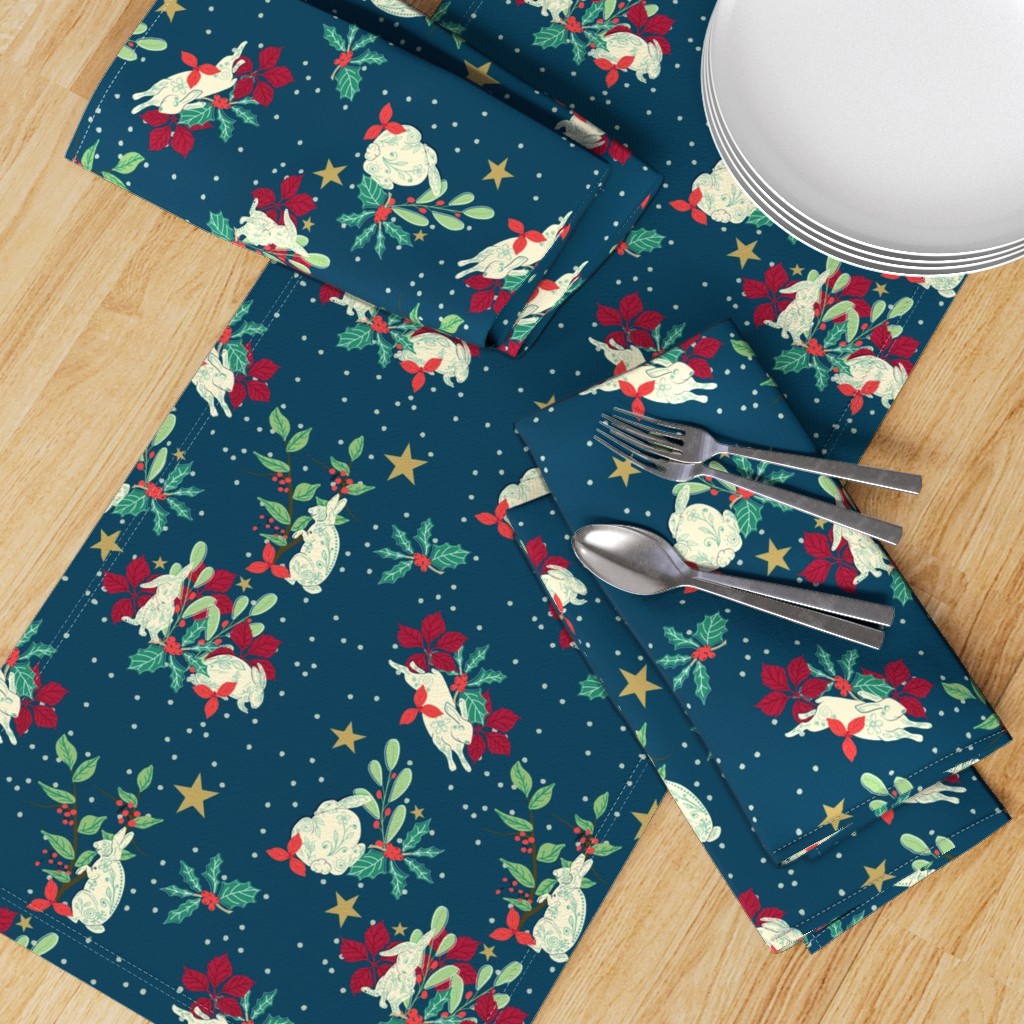
I already had berries bushes, mistletoe, and holly as assets too. I added each asset and began the task of organizing them into a pattern. Click the top three images to see them on Spoonflower.


More About the Vectorization Process
For the snowfall in the background, I created the background snowy dots in black in Procreate [with corner markings for placement], exported the jpg, imported jpg into Adobe Create, exported as svg to Affinity Designer as vector shapes.
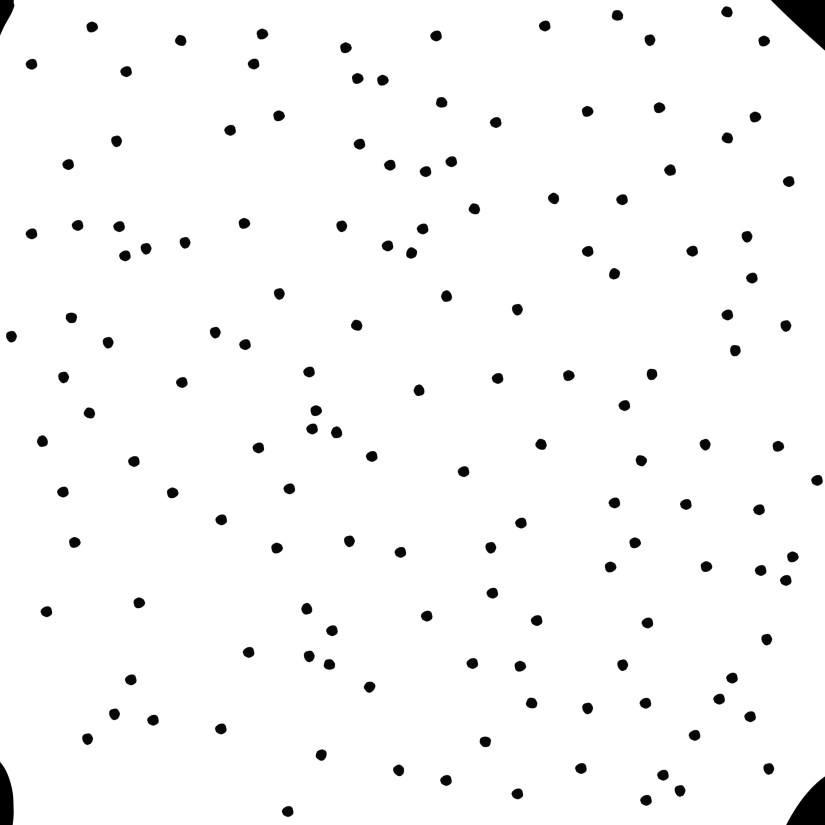
In the file in Affinity Designer, I grouped and hid the four corner markings. I grouped the all to dots together and then clicked “add” to add them together as one shape.
I copied both the shape and the markings group. I pasted them at the lowest layer, above the background color, of the Festive Bunny design in Affinity Designer, making sure the corner marks were hid. I then colored them off white to match the bunnies to look like falling snow.
I then deleted some of the dots that interfered with the pattern. I like how it turned out, which you see in the gallery above.
Creating Assets for ReUse in Affinity Designer
I added the same snowy dot background to the next pattern I created in Delores Naskrents AD 10 Advanced Floral Design Raster to Vector, part of the Affinity Designer MasterClass in which I am enrolled. This time, the dots are pollen.
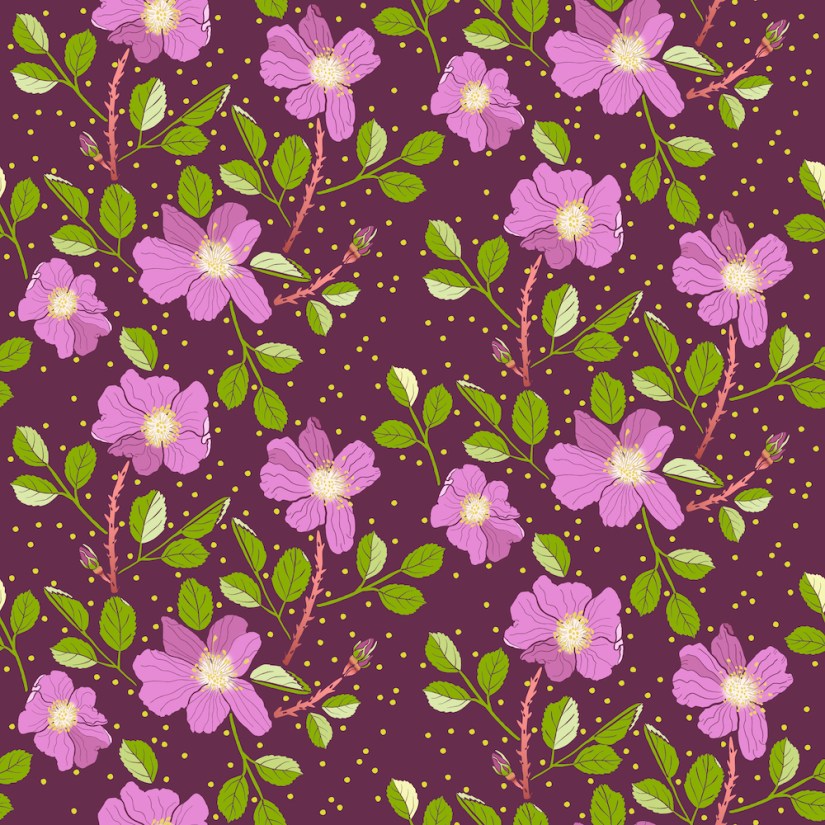
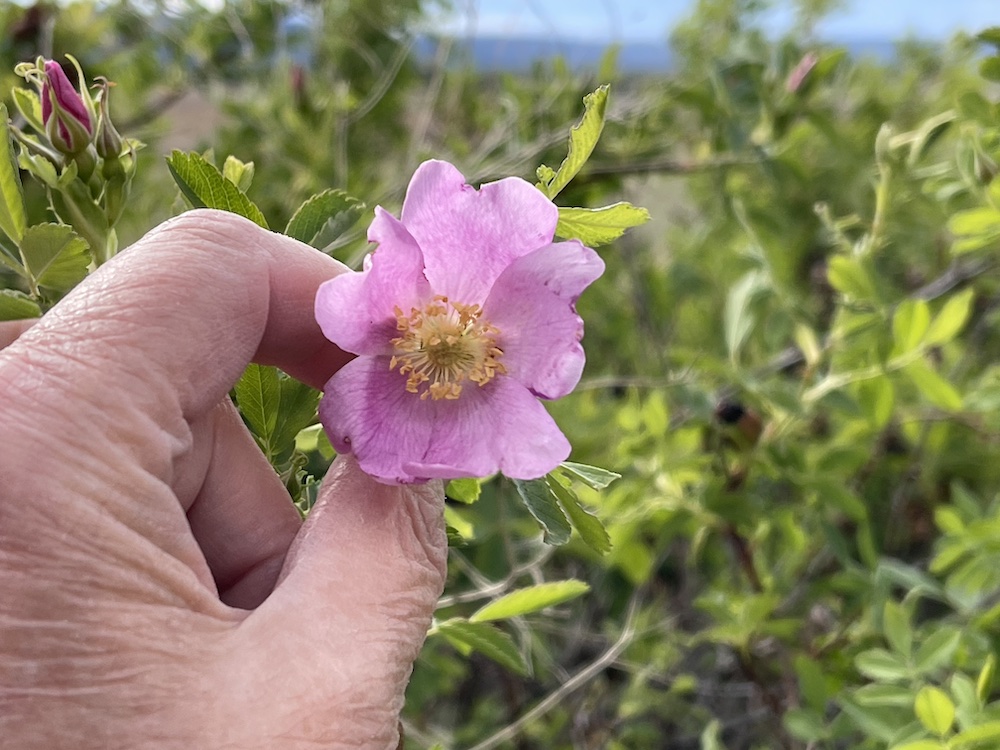
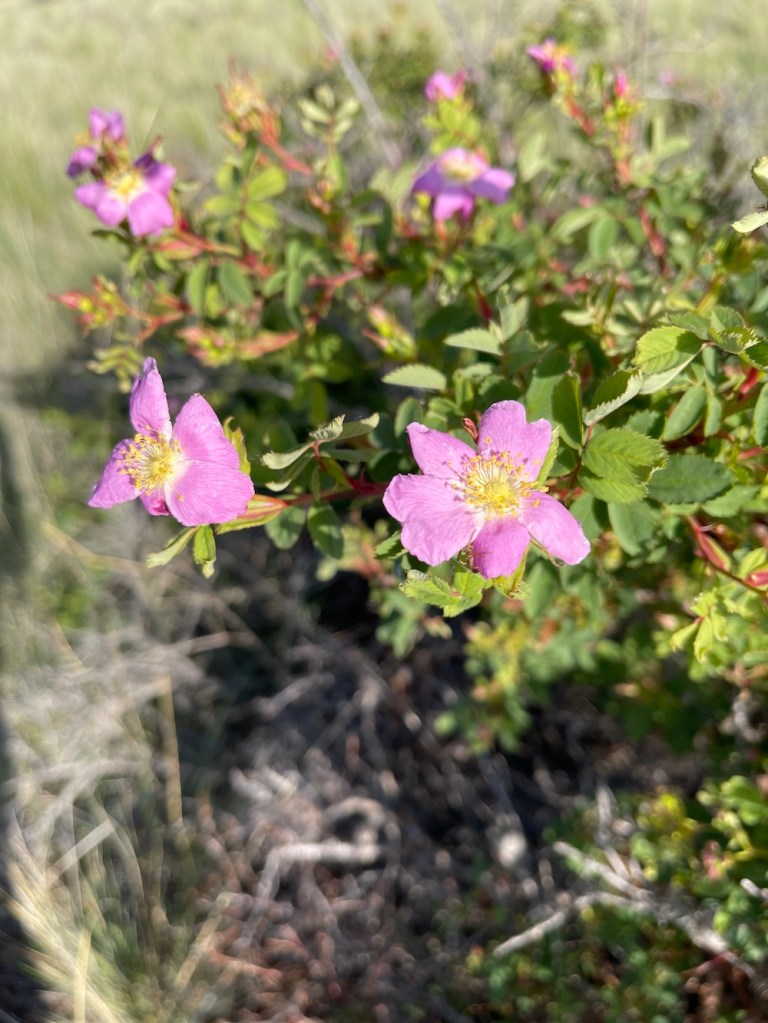
The motifs in this design were created in Procreate and vectorized with Adobe Capture again. I learned from Delores in the Masterclass how to make this folk art / block print style starting in Procreate for the textured look. I chose my own photos to illustrate the wild prairie rose, a Nootka rose from the Pacific Northwest.
After creating the folk art in Procreate, I exported each floral, leaf, and stem as black jpgs with corner markings. I repeated the process above for creating the snowy dots texture for each floral, stem, and leaf.
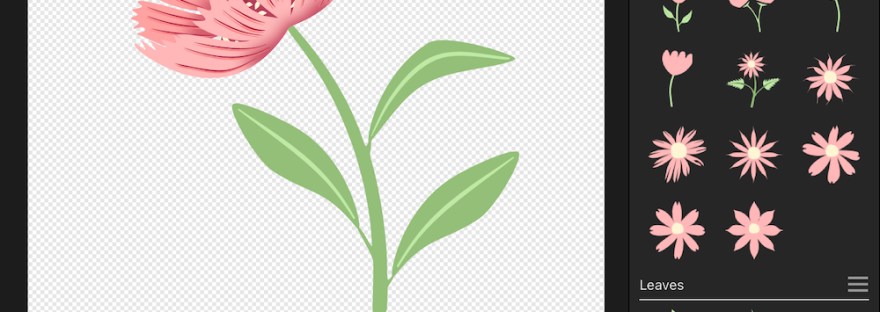
Once in Affinity Designer, I recolored each flower and leaf, adding them as assets into the Asset Studio. Now they are ready to reuse too!
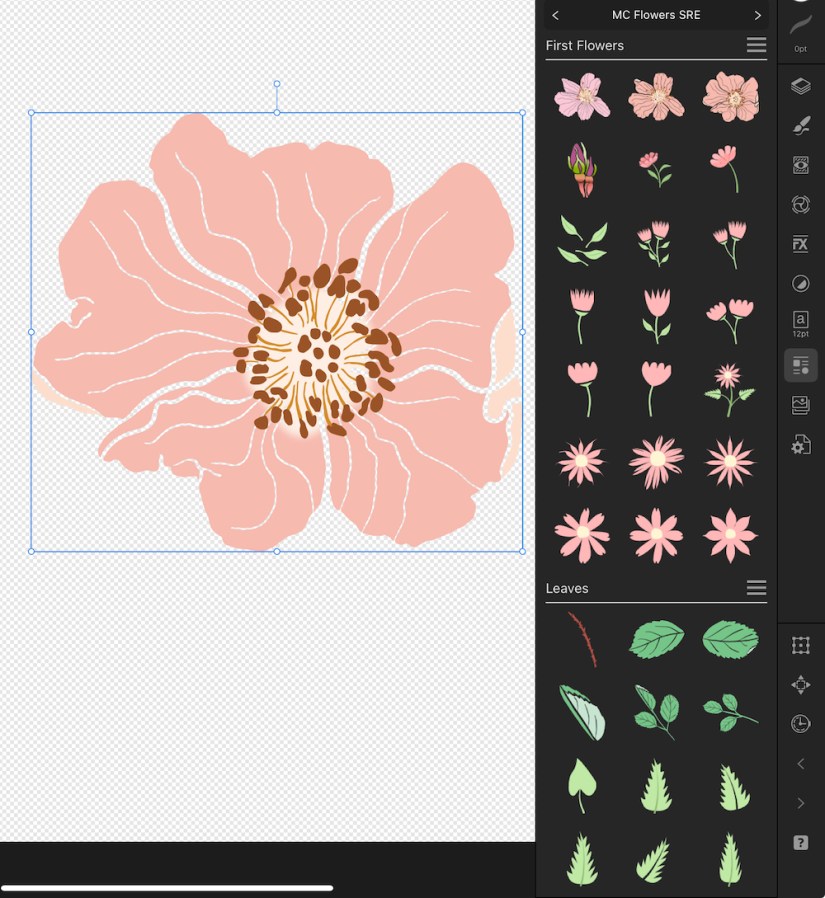
I created all the assets in the asset studio over the past week as I take the class. You can see how I recolored them from the asset to better fit the rose colors from my photos, using the photos to select the colors.
It’s been a busy week!
Thanks for stopping by!
Delores keeps us busy with her marvelous Affinity Designer lessons. I thank her and appreciate her specific and helpful tips, strategies, and organizational planning. The ability to create reusable assets is such an important strategy for artists, especially surface pattern designers and greeting card makers. If you only use Procreate, save your individual motifs as pngs for reuse. That’s one way to save those motifs! Be sure to keep them organized so you can find them!
If you have any suggestions or questions, please share and ask.
You can find many helpful artists teachers on my Artist Resources page. Take a look at their IG and YouTube. Find one that fits your learning and art preferences and stick with them a while to develop your skills. Every day, another aha!
You’re welcome to follow this blog for art inspiration. We can share with #warmup4art to enjoy our work together! I look forward to your sharing and find me at @42Sheri, on Mastodon Sheri42, on Flickr teach.eagle Sheri 42.

 I wonder, if I draw a line...